

Android Auto can display camera alerts as you drive. To get them, open the navigation app you use on your phone and check its alert settings before connecting to your car. Google Maps has a general switch for reported incidents, including mobile speed cameras where reporting is available. Waze lets you choose which types of cameras appear on the map and whether you want a warning as you approach them. Its options include speed and red-light cameras.You don’t need extra hardware. The alerts come from the navigation app, so the warnings you see depend on which app you’re using and what it knows about your route. Google Maps uses reports from other drivers. Waze adds camera locations based on information from its map editors and partners. Coverage varies, so you may pass cameras that don’t appear on either map.How to turn on speed camera alerts in Google MapsOpen Google Maps on your Android phone and tap your profile picture or initial in the top-right corner. Go to Settings > Navigation. Under Alert options, turn on “Get alerts for reported incidents and other conditions that may impact your drive.” Then open Google Maps on your Android Auto display and start driving directions.The switch covers other reported incidents and mobile speed cameras. As you approach a reported incident on your route, Google Maps can show it on the map and may play an audio alert. Google says some report types are available only in certain countries.How to turn on speed and red-light camera alerts in WazeWaze turns on camera alerts by default. To check or customise them, disconnect your phone from Android Auto and open Waze on the phone. Open the menu and go to Settings > Alerts and reports > Reports > Cameras. Select Speed camera or Red light camera, then turn on Show on map to display the camera or Alert while driving for a pop-up and voice warning. Repeat for each camera type you want, then reconnect your phone. Your choices carry over to Waze on the car’s display.If you see a speed camera on the Waze map without hearing a warning, check your speed. Waze says that when you’re driving at or below the limit, the camera can appear on the map without an audible alert. The Speed camera setting also controls warnings for average-speed enforcement zones in countries where Waze supports them.
Source link
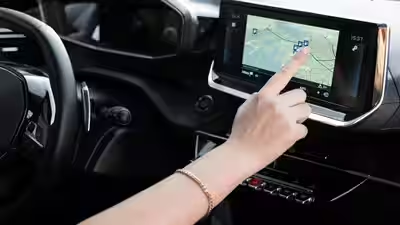
Android Auto can warn you about speed and red-light cameras; here’s how to turn on alerts in Google Maps and Waze